# Workspaces
A workspace puts up to four processes side by side in the Process Window. The agent you're steering, the dev server it depends on, the tests it just kicked off, the CI build for your branch. You see all of it without switching rows, so when something goes sideways you catch it while you're still in the middle of the work.

## Setting One Up
Drag any process from the sidebar into the big area on the right, or pick **Add to Workspace** from its menu. The first one creates the workspace. Processes can come from different projects, so the frontend and the API it talks to can sit next to each other.
Keep as many workspaces as you like. Each gets its own section in the sidebar that you can fold away like a project, with a count of how many of its four panels are in use. Until you name it with **Rename Workspace**, it goes by the projects it holds.
## Arranging Panels
A workspace holds up to four panels, in two columns of two. Each panel has a bar along its top with the process name, its menu and its buttons.
- **Move a panel** by dragging that bar. You see where it will land before you let go.
- **Resize** by dragging the gaps between panels. Each workspace remembers its own sizes.
- **Take a panel out** by dragging its bar back onto the sidebar, or with **Remove Panel from Workspace** in its menu. Nothing stops. Its processes go back to the sidebar list, still running.
- **Maximize** a panel with `Cmd+Shift+Enter` or by double-clicking its bar. It takes the whole window, sidebar included. Press it again to go back.
The panel you're working in has a lighter border, and the keyboard shortcuts act on that panel. Click into a panel to focus it, or press `Cmd+1` to `Cmd+4` to jump by number. Hold `Cmd` for a moment and every panel shows its number.
## Tabs
A panel can hold more than one process, one tab each. The tabs sit in the panel's bar, like tabs in a browser.
- `Cmd+T` opens a new terminal in the panel's project, right after the tab you're on.
- Drag a process from the sidebar onto a panel's bar to add it as a tab there.
- `Cmd+Option+Left` and `Cmd+Option+Right` step through the tabs.
- `Cmd+W` or the tab's `×` closes it. If the terminal still has something running in it, Devkeepr asks first.
- Drag a tab sideways to change the order.
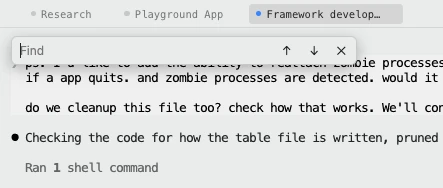
With a single process in it, the bar just shows that process's name. The tabs appear once you open a second one. In the sidebar a panel is always a single line, with a count of its tabs.
Tabs work outside a workspace too. Press `Cmd+T` while you're looking at a single process and a terminal opens behind it as a second tab. Close it again and you're back to the one process.
## The Workspace Menu
Right-click the workspace heading, or use its `···` button:
- **Restart All** brings every stopped process back. When there are agent sessions to pick up, it reads **Resume All**.
- **Add Activity Panel** gives the workspace a panel that shows what its agents are running. See below.
- **Detach All** takes every panel out and ends the workspace. Everything keeps running, back in the sidebar list.
- **Dismiss Stopped** clears the finished processes and keeps the running ones in place.
- **Exit & Dismiss All** stops everything and clears the workspace.
A process's own menu adds a few workspace items: **Move to Workspace** sends it to a different one, **Open Alone** shows it on its own without taking it out, and **Remove from Workspace** puts it back in the sidebar list.
Activity Panels PRO
An agent working for you starts a lot of small things: a test run, static analysis, a build, a dev server. An Activity panel gives each of them a tab in the workspace you're already looking at, and always shows you the newest one. You see a red test run the moment it happens instead of finding out three commits later.

Add one from the workspace menu with **Add Activity Panel**. A workspace has one at most. It fills with whatever an agent in that workspace starts through the [MCP server](/docs/general/features/mcp-server), and the latest CI run of each project in the workspace is its first tab. In the sidebar it shows as a single **Activity** line naming the run on screen, with a count of its tabs.
**It keeps up.** Each new run opens as the tab on screen. Click any other tab to read it for as long as you need, and the panel switches again when the next run starts.
**It won't pull the rug out.** While you're typing in that panel, it stays on the tab you're in. A small counter in its bar shows how many runs started since, and clicking it takes you to the newest.
**It stays quiet.** Processes in the workspace you have open don't send notifications while the window is focused. You're already looking at them.
Closing a tab dismisses that run. **Stop Following Activity** in the panel's menu turns it back into an ordinary panel that no longer picks up new runs.
Without an Activity panel, the runs an agent starts don't appear in the sidebar while they run or after they pass. A failed run always shows up under its project, so nothing that needs you goes missing. See [Agents](/docs/general/features/agents#where-agent-runs-show-up).