# Process Window
Devkeepr is home base for your projects. The Process Window is home base for what runs in them: dev servers, test watchers, agents mid-conversation, builds, CI runs. Everything attached to the project it belongs to, and it's all still there tomorrow morning.
That agent session with all the right context isn't buried in a list of 200 conversations on disk. It's under the project you were working on, exit code and all. The dev server isn't hiding behind a stack of terminal tabs you can't tell apart, and the CI run isn't a browser tab you'll forget you opened.

## Organized Per Project
Processes and CI runs are grouped under the project they belong to, and each project splits them further into **Terminals**, **Agents**, **Scripts**, and **GitHub** or **GitLab** runs.
A project only shows up in the sidebar when there's something to show: a running or recently finished process, a CI run, recent activity, or a pin. Quiet projects stay out of the way.
Click a project's heading to fold its rows away. It stays folded until you open it again, restarts included. A folded project still shows a dot when something inside it is running or has failed, so it keeps catching your eye. Anything starting there, or asking for you, opens it straight back up.
When the list fills up, `Cmd+/` jumps to search, which filters the list in place. It looks inside folded projects too, so a match is never hidden. Type to match by project, process, agent, or CI provider. **Open Project** on any row jumps to that project in the rest of the app.
## Start Anything From Anywhere
Trigger a stack action from wherever Devkeepr lives: the command palette, the menu bar, the `dk` [CLI](/docs/general/features/cli-tool), or any menu in the app. It shows up under its project with a live status dot. Click the row to watch its output in the pane on the right.
To see several processes at once, put them in a [workspace](/docs/general/features/workspaces): up to four side by side, each with as many tabs as you need.
## Built-In Terminals
Open a real shell on any project, colors and all, not a read-only log pane. `Cmd+Shift+T` opens one for the project you're looking at. Terminals follow your system's light and dark appearance, with a color palette for each, and reflow when you resize the window.
`Cmd+F` searches everything the terminal has printed. `Enter` and `Shift+Enter` step through the matches. Your shell keeps `Ctrl+F` for itself.
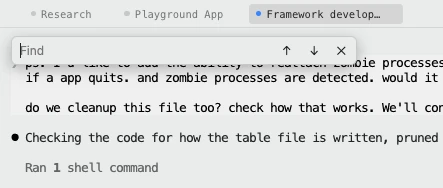
Press `Cmd+T` over a process and a terminal opens behind it as a second tab, in the same project. More on tabs under [Workspaces](/docs/general/features/workspaces#tabs).
## Pick Up Where You Left Off
Run `npm run dev` while you work and it stays on the row, ready to relaunch the next morning. Same for your build tool, your test watcher, and that one-off script you can never remember the name of. Your whole working set is one press of play away.
Agents come back too, with their conversation intact. See [Agents](/docs/general/features/agents#picking-a-session-back-up).
## Run, Stop, And Dismiss
Every row has play and stop. Rerun a finished script or stop a running one without hunting for the original command. With a finished process on screen, `Cmd+Enter` runs it again.
Status dots tell the outcomes apart at a glance: a clean exit, a run you stopped, and an outright failure each look different.
Finished rows stick around so you can come back and read the output. Clear one with **Dismiss**, or sweep a whole project from its heading: **Exit All** stops everything still running, **Dismiss Stopped** clears the finished rows, **Dismiss Agent-Started** clears only the finished rows an agent started, and **Exit & Dismiss All** stops everything and clears the lot.
## Previous Runs
A row is the job, not one run of it. Restart `composer test` and it stays the same row: the name you gave it, its notification level, and its place in a workspace all stay put.
The runs before the current one are under **Previous Runs** in the row's menu, each with how it ended and when. Pick one to read the output it left behind. Devkeepr keeps the last five runs of every row.
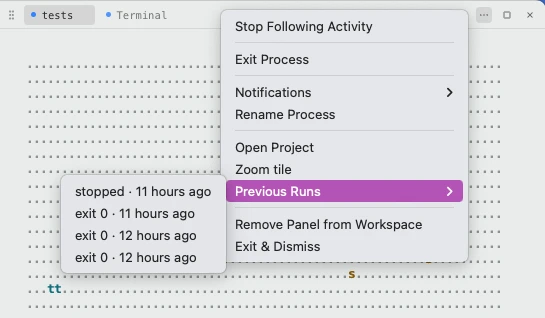
When an agent starts a second copy of a job that's still going, the extra run doesn't get its own row either. It's under **Parallel Runs** in the same menu.
## Notifications
When a process wants your attention, like an agent ringing its bell or asking a question, or a run finishing, Devkeepr lets you know. With the app in the background you get a desktop notification. With its window focused you get a toast instead. Click either one to jump to that process.
What you're already looking at stays quiet while the window is focused. That covers the process on screen and every process in the workspace you have open.
Set how much each process tells you from its menu under **Notifications**:
- **All**: every bell, prompt, and exit
- **Important**: prompts that need you and finished runs, nothing chatty
- **None**: nothing
New processes start on **Important**. You can change that default, or turn notifications off altogether, in **Settings**.
## Agents
Agents are terminals with a few extra tricks: sessions you can resume, and failures you can hand them in one click. They have their own page: [Agents](/docs/general/features/agents).
CI Runs PRO
GitHub Actions and GitLab pipeline runs land under their project too, alongside local scripts. Trigger one from the project's menu, then watch it here. The detail pane shows the full job and step breakdown: branch, trigger, commit message, run number, total duration, and a link to the provider.

From the row's menu you can:
- **Cancel** a running workflow
- **Re-run all jobs** after a failure
- **Re-run failed jobs** only
- **Open on GitHub** or **Open on GitLab** to see the run on the provider
A finished run raises the same clickable notification a local process does, and a failed run can be handed to an agent the same way. In a workspace with an [Activity panel](/docs/general/features/workspaces#activity-panels), the latest CI run of each project in the workspace is the panel's first tab, next to the work that triggered it.
## Keyboard Shortcuts
| Shortcut | What it does |
|----------|--------------|
| `Cmd+/` | Search the sidebar |
| `Cmd+Shift+T` | New terminal for the current project |
| `Cmd+T` | New terminal as a tab, right after the one you're on |
| `Cmd+W` | Close the current tab |
| `Cmd+Option+Left` / `Right` | Previous or next tab |
| `Cmd+1` to `Cmd+4` | Jump to a workspace panel. Hold `Cmd` to see the numbers |
| `Cmd+Shift+Enter` | Maximize the current panel or process to fill the window |
| `Cmd+F` | Search the terminal's output |
| `Cmd+Enter` | Run a finished process again |
## Optional Process Tray
Want to see what's running while you're on the Overview or a project's page? Turn on the **Process Tray** in Settings. It's a small panel in the bottom-right of every main window view, listing what's running across all your projects. It can pop open by itself when something new starts.
The tray is deliberately small. Click an item to open it in the Process Window, and the tray closes behind you.

## Forge Deployments
Forge deployments live on the project's detail page rather than in the Process Window. See [Deployment Watcher](/docs/general/features/deployment-watcher).